Give your photograph a voice.
Create a photo poster with up to six editable text blocks. Choose Full photo, Gallery poster, or Split editorial, then adjust words, fonts, placement, colors, and optional background panels in your browser.
Open Photo Typography & Poster Maker
Free to use. No account needed. Photos are processed in your browser. Guest exports include a Horizons signature; sign in to remove it.
Create a photo poster with up to six editable text blocks. Choose Full photo, Gallery poster, or Split editorial, then adjust words, fonts, placement, colors, and optional background panels in your browser.
Before and after
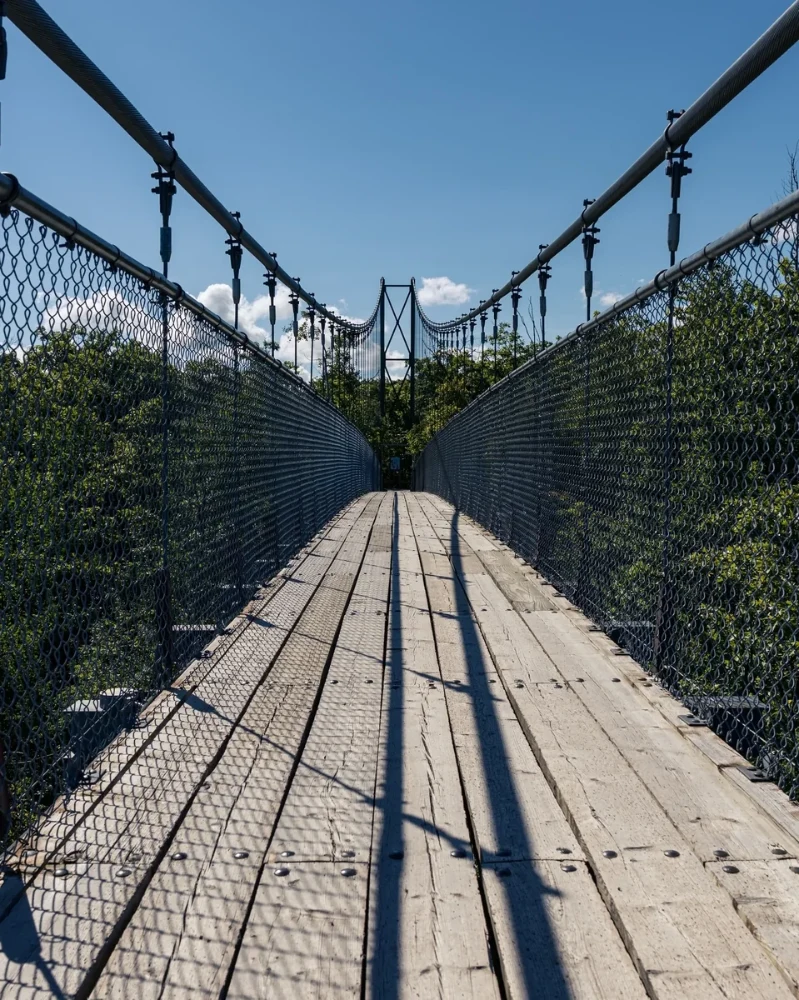
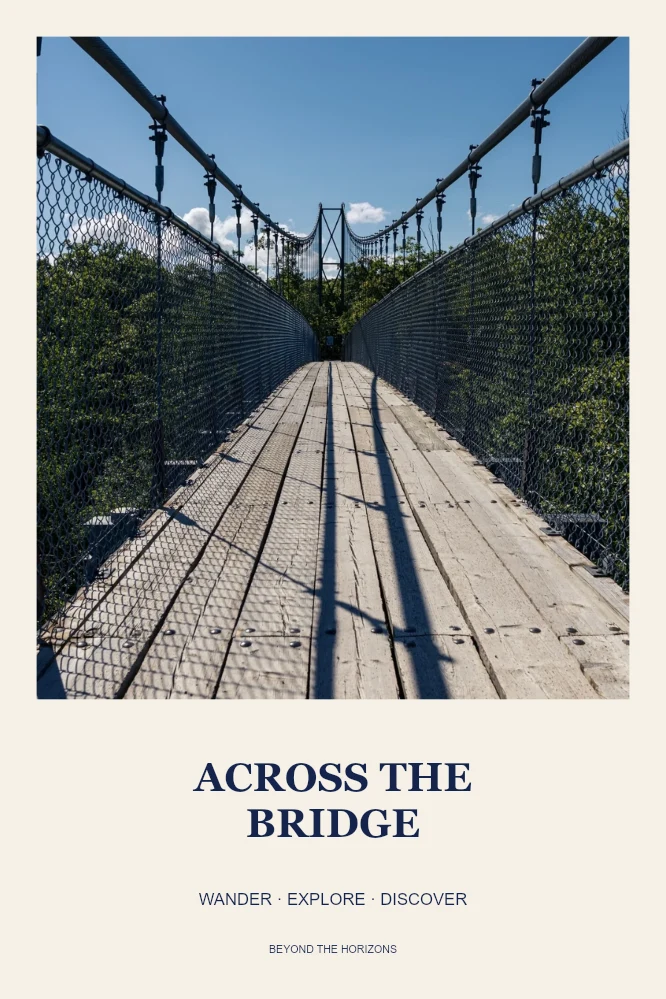
Settings used: Gallery poster; portrait 2:3 canvas; ACROSS THE / BRIDGE title, WANDER · EXPLORE · DISCOVER subtitle, and BEYOND THE HORIZONS footer.
Examples use resized images. Fine detail can vary with your source resolution.
All tool guides · Open Photo Typography & Poster Maker
Make this edit
- Choose a photograph, a canvas shape, and a layout preset. The photo crops to fill its area; adjust its framing if needed.
- Select a text block, replace its words, and choose its font, style, size, and color. Add or remove blocks as needed.
- Adjust placement and readability, check the preview, then download. In the guided editor, Apply & continue adds the complete poster to your editing history.
Available options, explained
- Canvas and layout
- Choose original proportions, portrait 2:3, square 1:1, portrait post 4:5, story 9:16, or landscape 3:2. Full photo overlays text; Gallery poster adds a paper border and text band; Split editorial places text beside or below the photo.
- Text blocks
- Start with title, subtitle, and footer. Keep selection visible above the focused settings. Add or duplicate blocks, change their layer order, and undo or redo draft edits. Use 1–6 blocks of up to 240 characters each. Explicit line breaks are preserved, and long lines wrap. Empty blocks are not drawn.
- Typography
- Choose Modern, Classic, Editorial, Typewriter, or Handwritten; Regular, Bold, or Italic; size 1–20% of the shorter canvas edge; and your text color.
- Placement
- Select text on the canvas and drag with a mouse, or use horizontal and vertical position controls. Adjust box width, alignment, and line spacing with sliders or exact numeric values. Center buttons align a block on the canvas. A touch tap selects text; use controls for touch placement.
- Background panels
- Add a rectangle behind a selected block, then choose its color and opacity. Each block has independent settings.
- Photo and guides
- Move the photo within its crop and darken it for contrast. Alignment guides and selection outlines appear only in the editor preview. Enlarge preview opens a larger view of the artwork.
Get a better result
Keep the title short and give supporting text room. Use dark text on light paper or a background panel behind text over a busy photograph.
Troubleshooting
Layout presets reposition and restyle blocks while preserving their words. Canvas shapes keep your typography styling. If text is reduced to fit, shorten it, widen its box, or lower its font size. A poster is exported as a single flattened image; keep the editor open to edit its text.
File formats and download help
Across the Suspension Bridge uses a portrait 2:3 canvas and Gallery poster. The title reads ACROSS THE / BRIDGE, with a short subtitle and a footer. Default text colors and sizes follow the layout preset.
Three ways to use this tool
A travel poster
Choose Gallery poster and add a short place or memory title.
A photo quote
Use Full photo with a contrasting text panel for readable words.
An editorial card
Try Split editorial to give the image and supporting text their own space.
Before you use Photo Typography & Poster Maker
Can I add more than one text block?
Yes. Start with three blocks and use Add text block for up to six. You can remove blocks down to one, or leave text empty.
Does changing a layout erase my words?
No. Layouts reposition and restyle your existing blocks while preserving their text.
Can I edit text after downloading?
The download is a flattened JPG or PNG. Keep this editor open to continue editing text; re-uploading the poster does not restore editable blocks.
Which files can I use, and what can I download?
Choose a JPG, PNG, or WebP up to 30 MB and 40 megapixels. Download the finished image as JPG or PNG. Your photo is processed in your browser.