Pencil Sketch Guide
Pencil Sketch translates edges and tonal areas into graphite-like lines and shading. Photos with a clear subject and controlled background usually give you more useful starting material than scenes full of tiny competing details.
Before and after

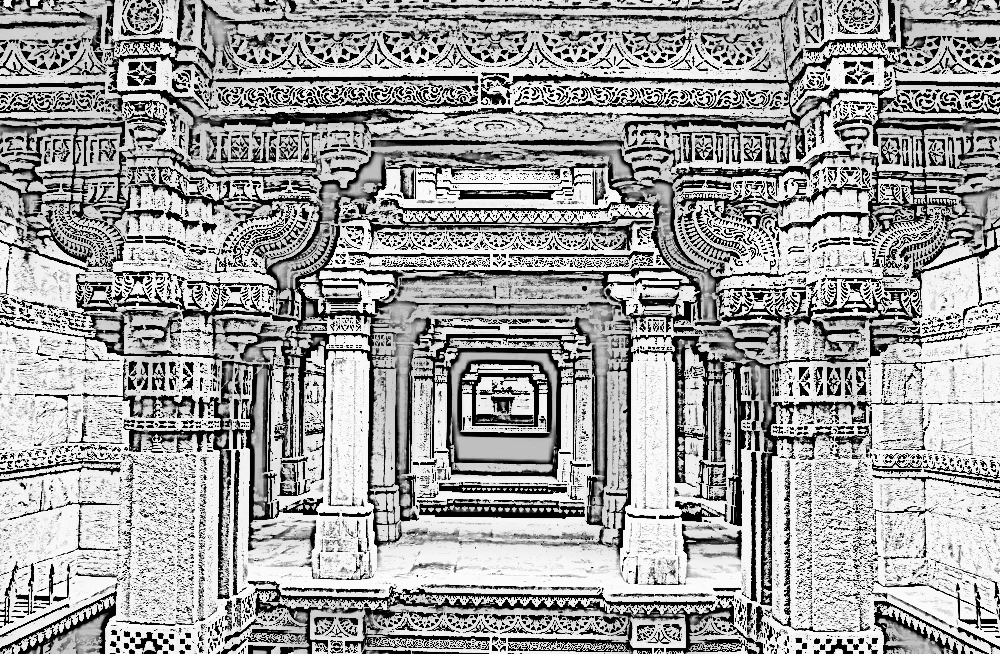
Settings used: White paper; strength 100%, detail 55%, pencil darkness 65%, shading 25%, texture 15%.
Examples use resized images. Fine detail can vary with your source resolution.
All tool guides · Open Pencil Sketch
Make this edit
- Load a photograph and choose White paper, Warm ivory, or Cool blue.
- Adjust Effect strength, Fine detail, and Pencil darkness to establish the main outlines.
- Balance Shading and Paper texture. Compare the original and check that important features remain distinct before downloading.
Available options, explained
- Paper tone
- White paper is neutral; Warm ivory gives a cream cast; Cool blue adds a blue paper tone.
- Effect strength
- 0–100% mixes the sketch with the original photograph.
- Fine detail
- Higher values emphasize small edges. Lower values can calm noise or a busy background.
- Pencil darkness
- Controls the strength of the graphite-like marks. Check delicate features before increasing it.
- Shading
- Adds tonal shading around the line work. Reduce it for a cleaner outline-focused image.
- Paper texture
- Adds the appearance of paper grain. Inspect the downloaded file because fine texture can differ from the preview.
Get a better result
For a softer portrait, begin with lower detail and darkness. Add shading gradually rather than making every edge equally strong.
Troubleshooting
Fine detail can emphasize image noise and busy foliage. Reduce it or crop to a simpler subject first. The full-resolution export may show finer paper texture than the scaled preview.