Glass Type Guide
Glass Type places transparent, dimensional lettering over a photograph. The effect depends on the background beneath the letters, so text position matters as much as font or depth.
Before and after

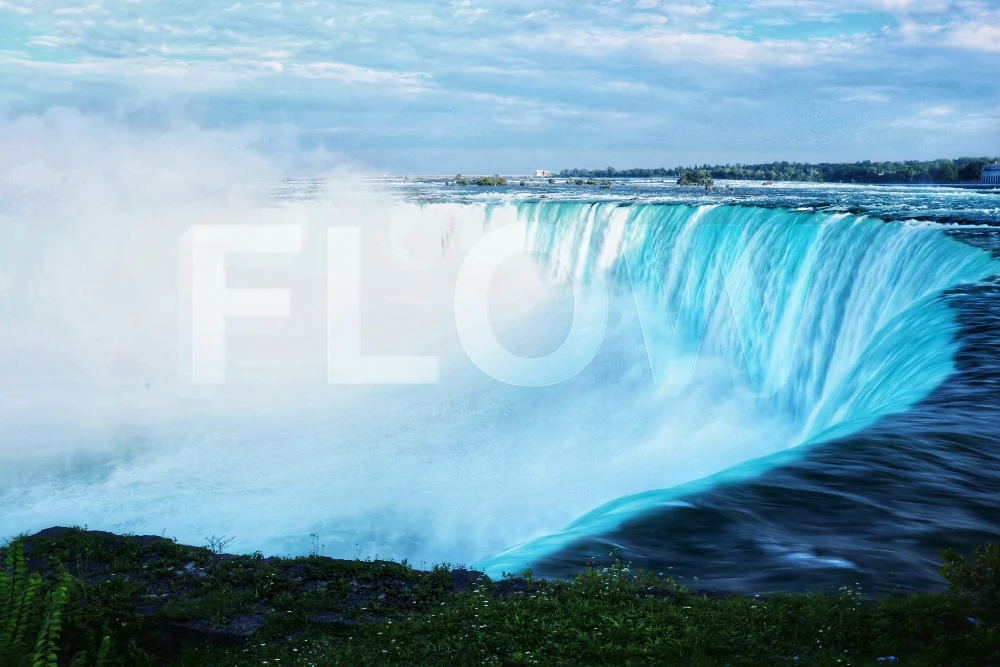
Settings used: “FLOW” in Modern bold, size 22%, centered at 50% / 46%; remaining settings at their defaults.
Examples use resized images. Fine detail can vary with your source resolution.
All tool guides · Open Glass Type
Make this edit
- Choose a photo, enter a short phrase, and pick a font that remains readable over the scene.
- Drag the text to position it. You can also use arrow keys, with Shift for larger movements. Adjust size and rotation.
- Tune depth, refraction, lighting, and shadow gradually. Compare the words against both bright and dark parts of the photo, then download.
Available options, explained
- Text and font
- Enter your words. Fonts are Modern, Classic, Editorial, Typewriter, and Handwritten, with Bold, Regular, or Italic styling. Short phrases are easier to read.
- Placement
- Choose left, center, or right alignment; Horizontal, Vertical (rotated), or Stacked letters. Adjust Font size, Rotation, Tilt, Horizontal position, and Vertical position. Drag the preview text or use arrow keys; Shift moves it farther.
- Blend mode
- Soft light is subtle; Overlay adds contrast; Screen brightens; Multiply darkens; Normal places the lettering without one of those tonal blends. The background changes how each mode looks.
- Text opacity, highlights, and edges
- Text opacity controls the overall lettering contribution. Highlight strength emphasizes light surfaces, while Edge strength defines letter boundaries.
- Mirror reflection
- Choose None, Below, Above, Left, or Right. Adjust Reflection opacity, fade, spacing, and Water ripples to control the reflected lettering.
- Glass effects
- 3D depth adds dimension; Glass intensity and Transparency change the glass appearance. Light angle sets the direction of illumination.
- Shadow
- Choose None, Soft, Crisp, Floating, or Glow. Shadow adjustments let you set its color, opacity, softness, distance, and angle; custom adjustments are shown as Custom.
Get a better result
Start with restrained lighting and depth. Increase one setting at a time to understand which change improves the sense of glass.
Troubleshooting
If the words disappear, move them to a simpler part of the photograph or change the blend and shadow settings. Strong refraction on a detailed background can make lettering harder to read.