Pixelate Guide
Pixelate turns a photo into a tiled mosaic. Pixel size changes how much detail survives, while color levels and gaps determine whether the result feels like a compact digital image or a decorative tile pattern.
Before and after
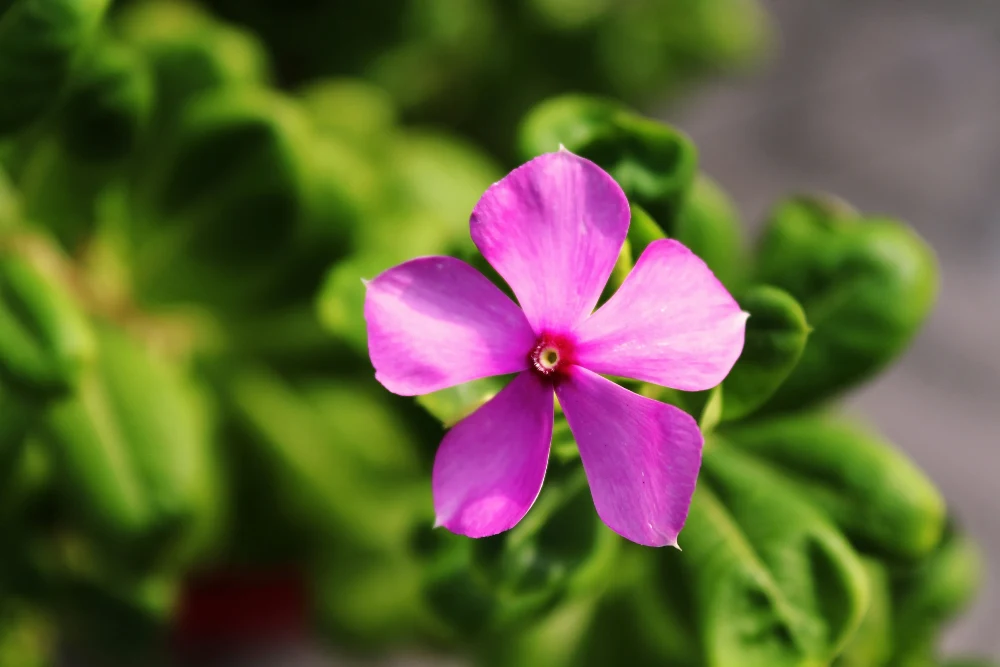
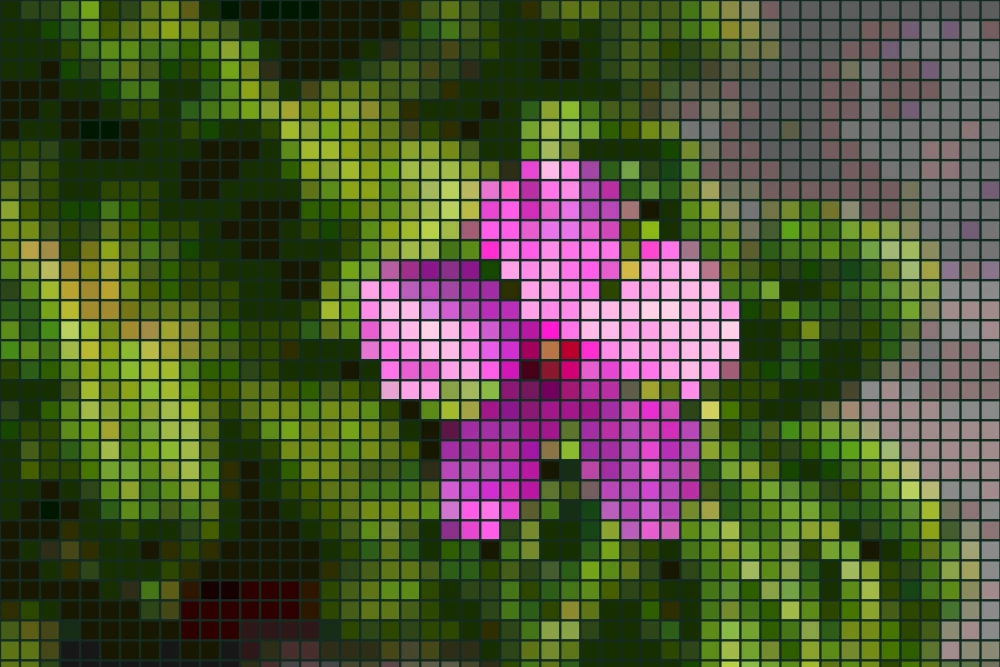
Settings used: Square tiles, pixel size 3%, 12 color levels, gap 12%, dark green gap color; Normal blend at 100% opacity.
Examples use resized images. Fine detail can vary with your source resolution.
All tool guides · Open Pixelate
Make this edit
- Select a photo with a recognizable silhouette or clear areas of color.
- Adjust pixel size and color levels. Choose square or round tiles and set the gap size and color.
- Try Normal blending first, then compare other blend modes and opacity settings. Check the original and export as JPG or PNG.
Available options, explained
- Pixel size
- Choose 0.5–12% of the image’s shorter edge for the tile size. Larger tiles simplify the photograph more strongly.
- Color levels
- Choose 2–256 levels per color channel. Fewer levels produce larger jumps between color values and a more limited, retro palette. More levels preserve subtler changes.
- Gap and tile shape
- Set Gap from 0–80% and choose Square or Round tiles. Gap color fills the spaces; narrow gaps usually preserve the subject more clearly.
- Blend mode
- Normal shows the mosaic directly. Multiply darkens; Screen brightens; Overlay and Soft light combine contrast with the source; Difference produces an inverted-looking contrast effect.
- Opacity
- 0–100% mixes the mosaic with the original photo. At 0% the original shows through; at 100% the selected mosaic blend is fully applied.
Get a better result
Judge the result at the size where it will be used. A mosaic that looks abstract close up can read clearly as a small thumbnail.
Troubleshooting
Decorative pixelation is not a reliable way to anonymize a face, document, or license plate. For sensitive content, remove the area or cover it with an opaque redaction before sharing.