Multi Crop Guide
Prepare several compositions from one photograph. Multi Crop lets you position each aspect ratio independently, so a portrait version can emphasize a person while a landscape version keeps the surrounding scene.
Before and after
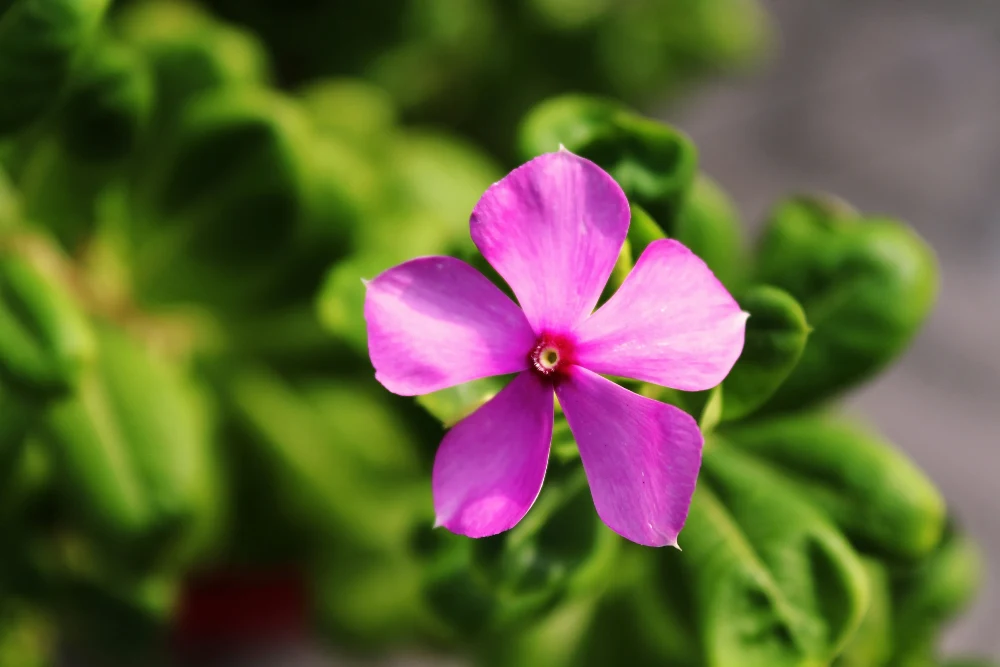
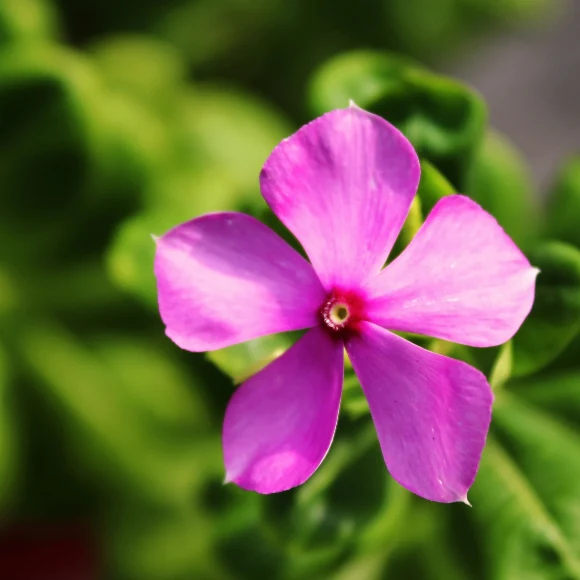
Settings used: Square crop, centered on the flower; zoom 1.15.
Examples use resized images. Fine detail can vary with your source resolution.
All tool guides · Open Multi Crop
Make this edit
- Open Multi Crop and select your photograph. Start with the largest original you have rather than a screenshot.
- Review each aspect ratio. Move the image within each crop and adjust zoom to keep the subject inside the frame.
- Check the edges for cut-off hands, buildings, or distracting objects. Download the crops you need.
Available options, explained
- Aspect ratios
- Square 1:1, Portrait 4:5, Classic portrait 3:4, Portrait print 2:3, Story 9:16, Classic landscape 4:3, Landscape print 3:2, and Widescreen 16:9. Choose the shape for the place you will use the photo.
- Zoom crop
- Move from 1× toward 4× for a tighter composition. Zoom removes source pixels; it does not add detail.
- Horizontal and vertical framing
- Move the crop across or up and down the image. Each ratio keeps its own framing in Multi Crop; the guided editor applies one chosen ratio.
Get a better result
A tighter crop reduces the number of original pixels available. Start with the loosest composition that works, then zoom only when necessary.
Troubleshooting
If a ratio cannot be exported from a tiny image without upscaling, choose a larger source. Cropping cannot recover parts of a scene outside the original photograph.