Frame Guide
Frame adds a border and optional caption around the full photograph. It works well for a simple presentation image or a collection with consistent margins, without cropping away the original composition.
Before and after
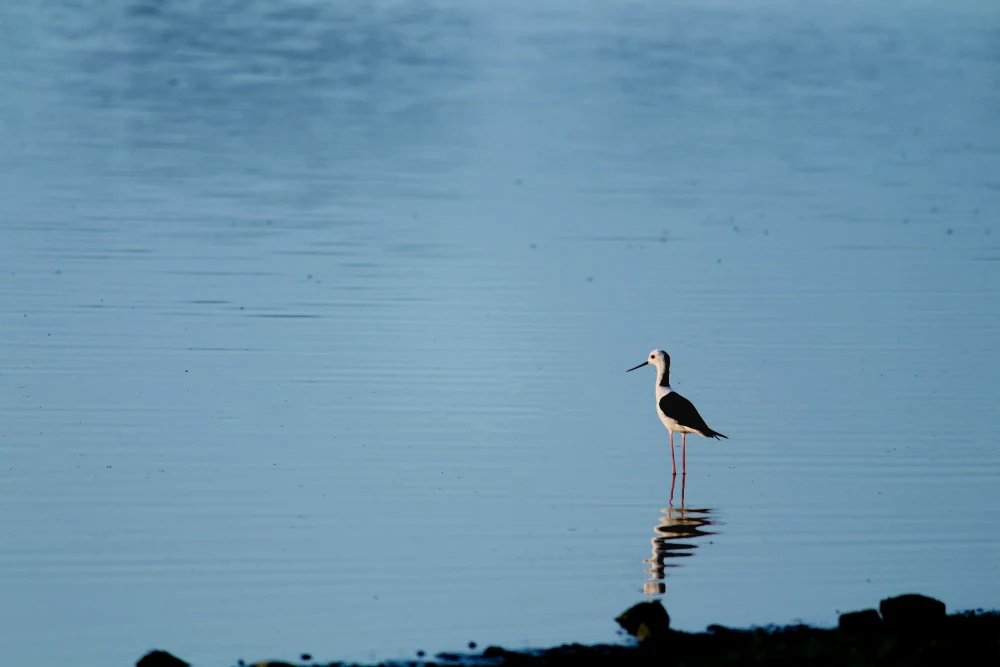
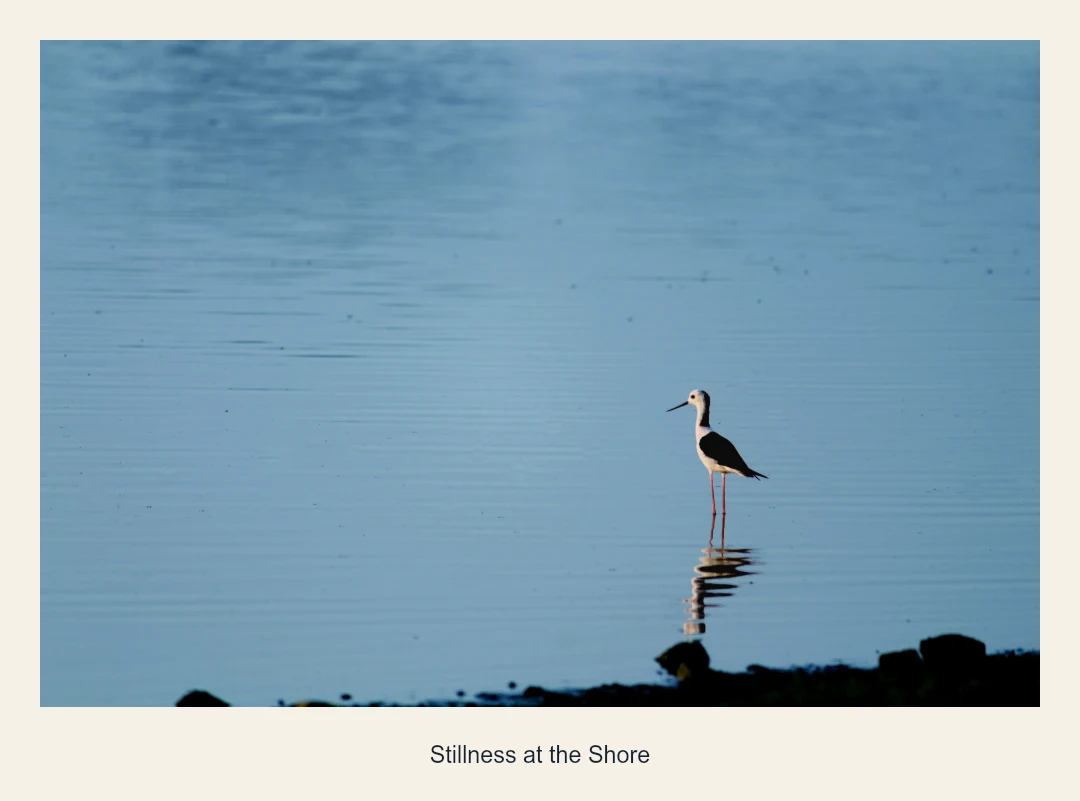
Settings used: Even border, 6% width, warm white frame and a centered caption.
Examples use resized images. Fine detail can vary with your source resolution.
Make this edit
- Open Frame, select a photo, and choose a frame design.
- Set the border size and color. Try a color already present in the scene before using a strong contrasting border.
- Add an optional caption and adjust its font, color, and alignment. Inspect the full preview before downloading.
Available options, explained
- Framing option
- Even border keeps equal basic margins. Polaroid makes the bottom border three times deeper; a caption can require more space.
- Frame size
- 0–25% of the photograph’s shorter side. A wider border increases the exported image dimensions.
- Frame design and color
- Choose Solid, Double line, Gallery mat, or Pinstripe, then pick a frame color that supports the photograph.
- Caption
- Enable Add text below your photo. Enter up to 120 characters: a short title, place, date, or memory that is true to your photograph.
- Caption appearance
- Choose Modern, Classic, Editorial, Typewriter, or Handwritten; adjust text size from 1–8% of the shorter image side and choose left, center, or right alignment. The caption color choices are light or dark.
Get a better result
Use consistent frame settings across a series so that changes in border width do not distract from differences between the photographs.
Troubleshooting
Long captions can crowd the border. Shorten the text or reduce its size and check the exported file at its intended viewing size. A frame is part of the downloaded image, not a physical print border.