Painting Guide
Painting offers oil, watercolor, and gouache effects. The best choice depends on whether you want stronger texture, a softer wash, or broader areas of color; compare styles on the same image before refining the effect.
Before and after
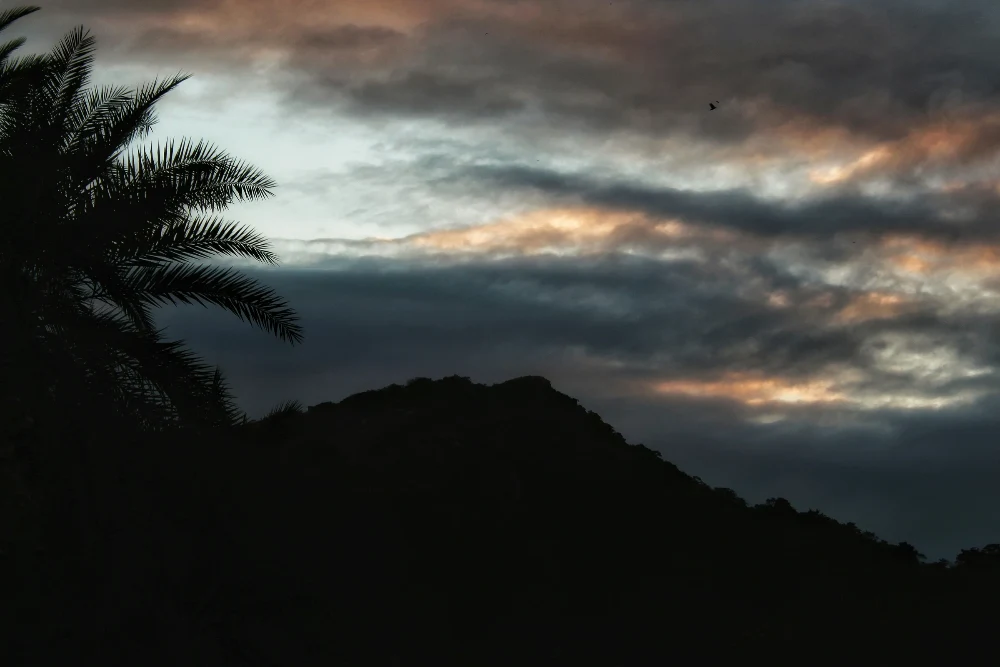
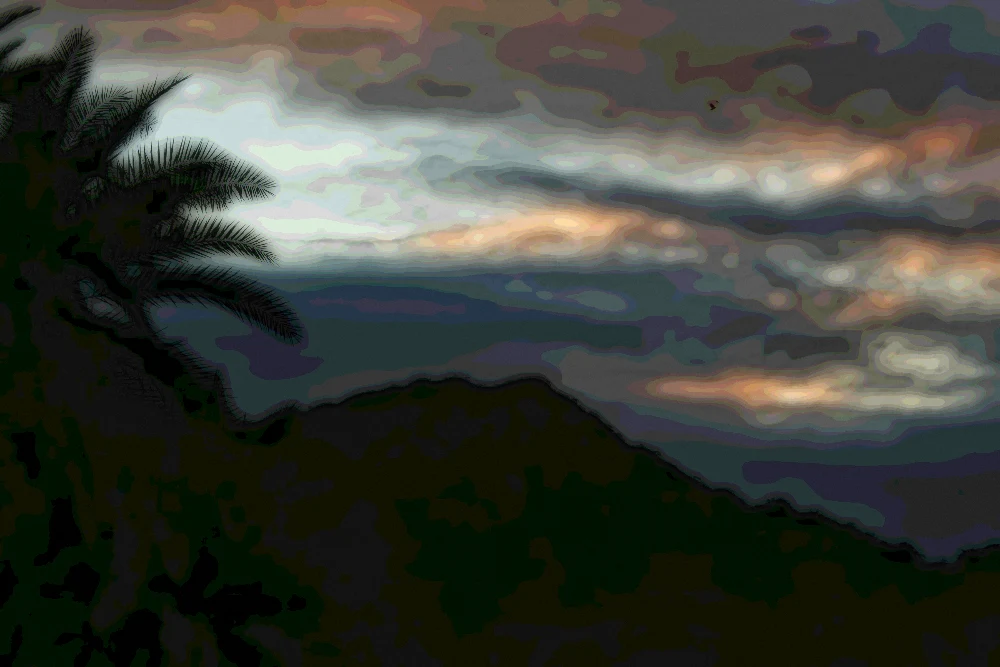
Settings used: Oil style; strength 100%, brush size 45%, color richness 115%, canvas texture 25%.
Examples use resized images. Fine detail can vary with your source resolution.
All tool guides · Open Painting
Make this edit
- Select a photo and choose Oil, Watercolor, or Gouache from Painting style.
- Adjust the effect and texture controls gradually, keeping an eye on the main subject rather than individual preview pixels.
- Compare with the original. Export and inspect the full-resolution file before deciding whether fine texture needs another adjustment.
Available options, explained
- Painting style
- Oil, Watercolor, and Gouache offer different painterly treatments. Compare them with the same source and settings.
- Effect strength
- 0–100% blends the painting treatment with the original image.
- Brush size
- 0–100% changes the scale of simplified detail. Larger settings favor broad areas over tiny features.
- Color richness
- 0–200% controls saturation; 100% is neutral. Watch skin tones and saturated skies as you increase it.
- Canvas texture
- 0–100% adds surface texture. The effect can look different in a full-resolution export.
Get a better result
Broad light and color relationships matter more than tiny details in a painterly result. A simple composition often works better than a crowded scene.
Troubleshooting
Small text, thin wires, and fine facial features can lose definition as the effect increases. Lower the strength if those details matter. Export texture can differ from the reduced preview.