Cartoon Maker Guide
Cartoon Maker simplifies a photograph into outlined shapes and a consistent tonal shade. It is useful for a coordinated series because the selected shade is applied across shadows and highlights rather than preserving every original color.
Before and after
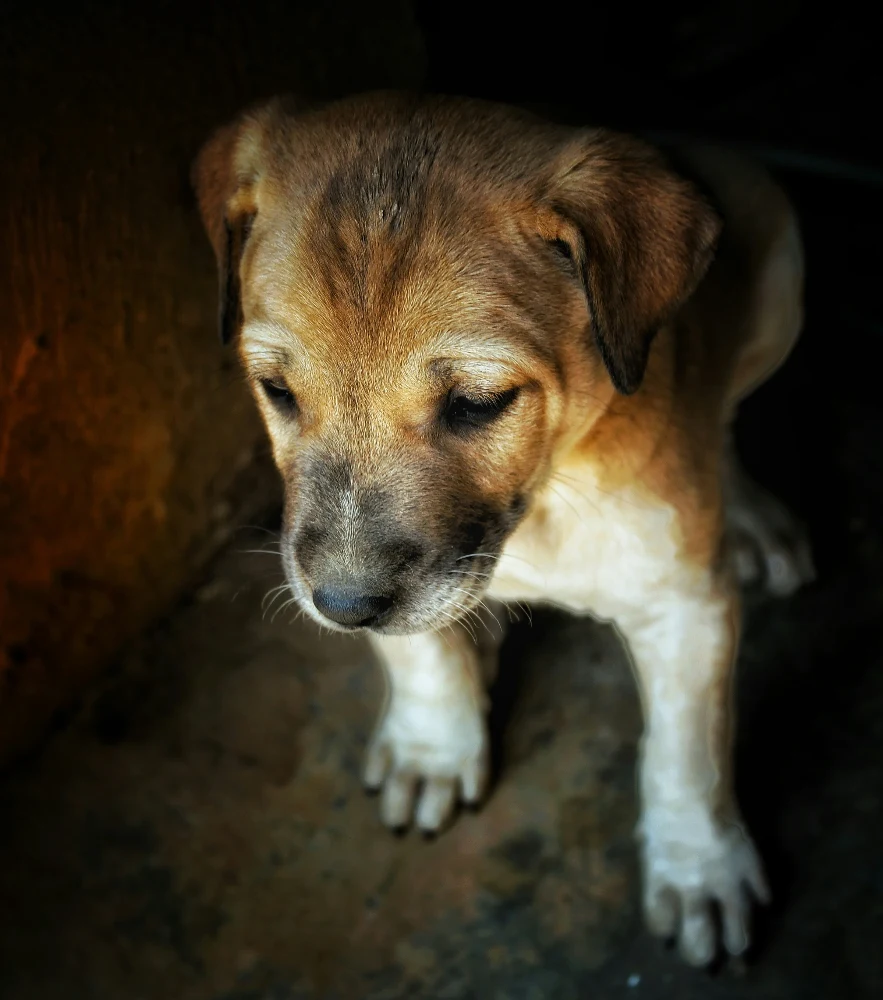
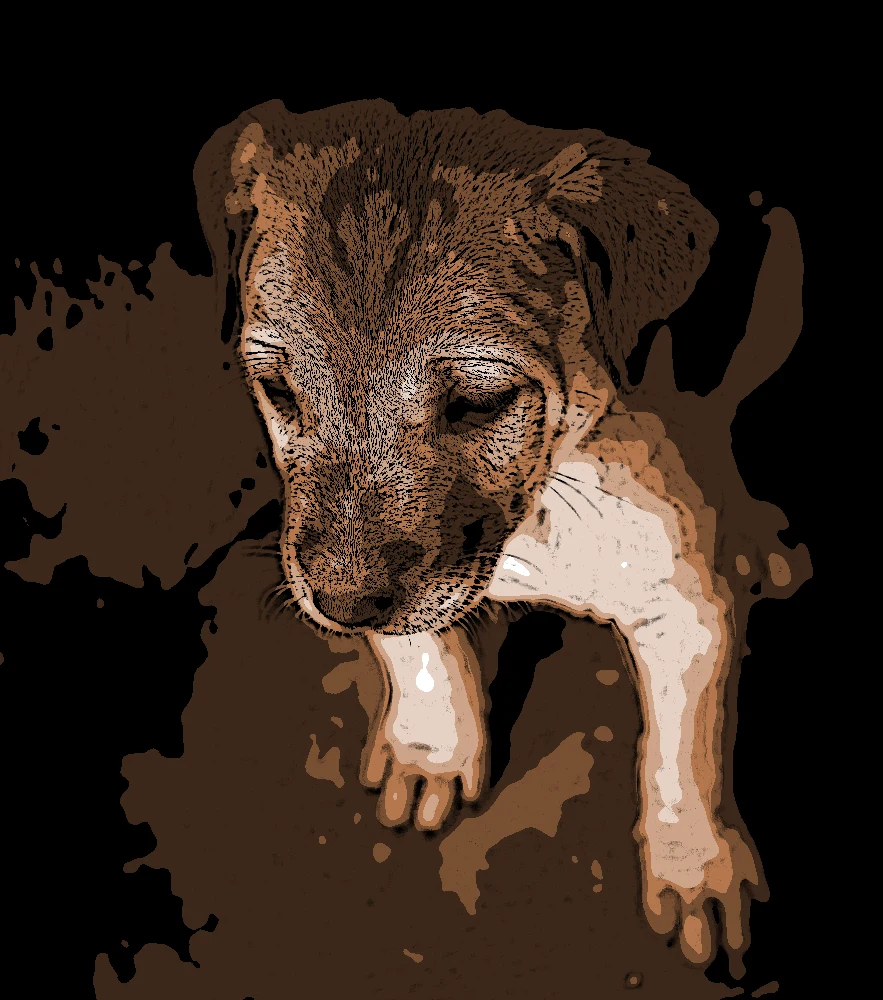
Settings used: Tonal shade #b4774d; smoothing 35%, 7 color levels, outline strength 65%.
Examples use resized images. Fine detail can vary with your source resolution.
All tool guides · Open Cartoon Maker
Make this edit
- Select a photograph with clear separation between the subject and background.
- Choose a Tonal shade, then adjust the available outline, color, and effect controls.
- Use Show original to check whether facial features or small objects remain legible. Download when the main shapes read clearly.
Available options, explained
- Tonal shade
- Choose the common hue used across dark ink and lighter highlights. It replaces the original color family rather than simply adding a colored overlay.
- Smoothing
- 0–100% controls simplification of fine texture. Higher values favor broader shapes.
- Color levels
- Choose 3–20 tonal levels. Fewer levels look flatter; more levels retain gradual shading.
- Outline strength
- 0–100% controls edge emphasis. Reduce it when fur, foliage, or background texture distracts from the subject.
Get a better result
Check the selected shade whenever you choose another image: your settings carry over, which is helpful for a series but may not suit a different subject.
Troubleshooting
A cluttered background can compete with the subject after simplification. Crop first or use a source with a cleaner background. This is an image effect, not a hand-drawn reconstruction of missing detail.