Color Palette Guide
Color Palette helps turn the colors in a photograph into a reusable set of HEX codes. You can also generate a coordinated palette without an image, which is useful when planning a background, caption, or design before selecting photos.
Photo to color palette
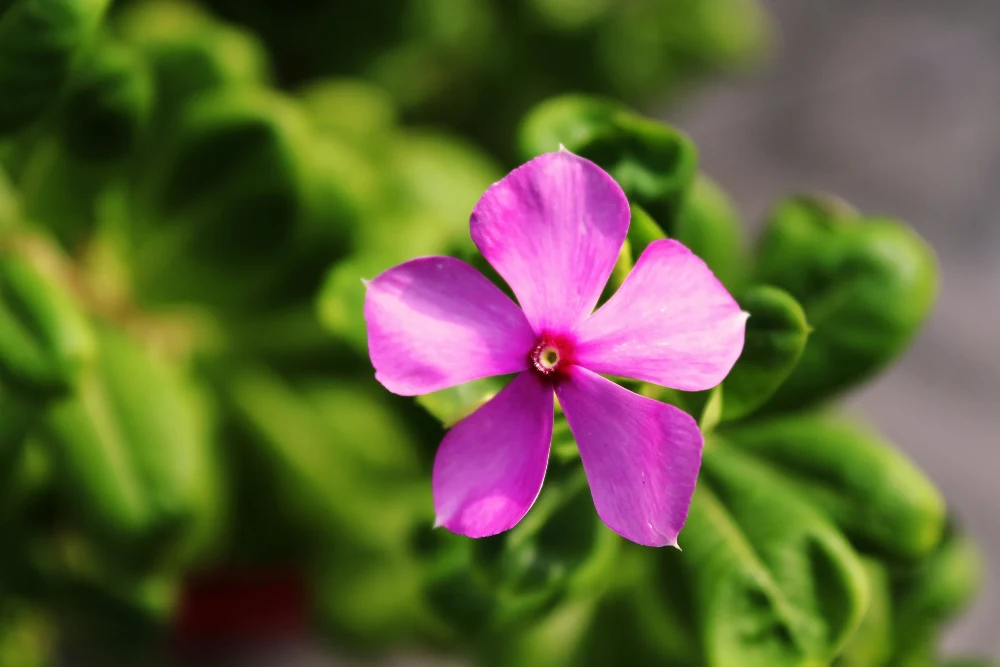
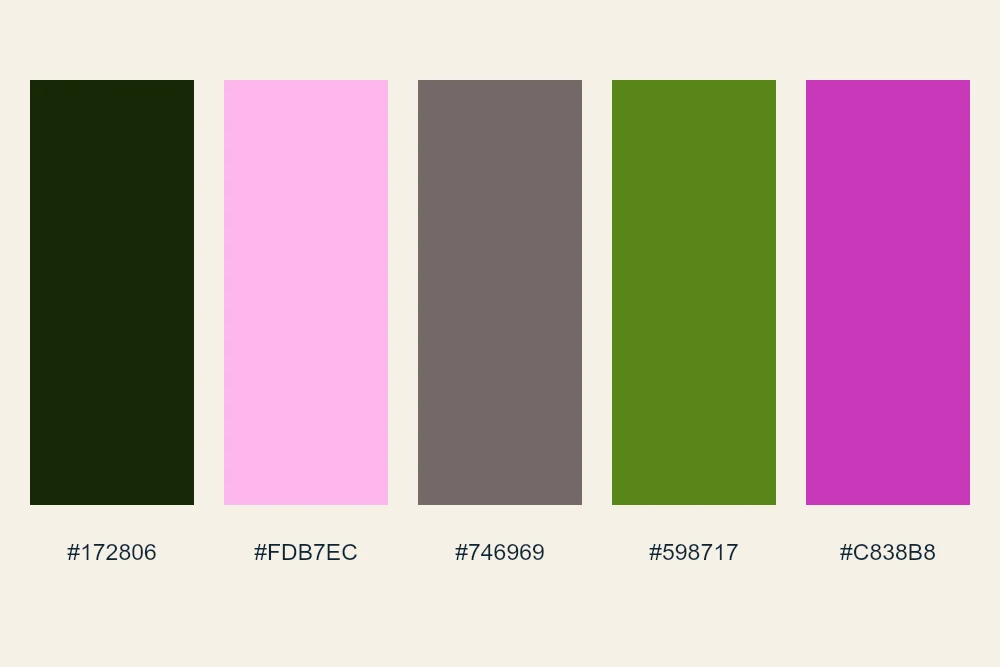
Settings used: Five colors extracted from the photo, shown with their HEX codes. Palette output is color codes, not an edited photograph.
Examples use resized images. Fine detail can vary with your source resolution.
All tool guides · Open Color Palette
Make this edit
- Open Color Palette. Select a JPG, PNG, or WebP to extract colors, or leave the image empty to generate a palette.
- For generated palettes, choose Same hue or Related hues, select 3–8 colors, and choose Generate random palette.
- Click a swatch to copy its HEX code, or choose Copy all colors. Remove the image to return to random generation.
Available options, explained
- Image or generated palette
- Select a photo to extract its colors. Remove it to return to generation without a photo. Images are processed locally in your browser.
- Palette style
- Same hue creates tonal shades around one hue. Related hues creates a family of neighboring hues. These choices apply to generated palettes.
- Number of colors
- Choose 3–8. An extracted palette may contain fewer colors when the source has fewer distinct sampled colors.
- Generate and copy
- Generate random palette creates a fresh set. Click a swatch for its HEX code, or choose Copy all colors. HEX codes are the output; there is no image export.
Get a better result
A palette is a starting point for a design, not a guarantee of readable or accessible color combinations. Reserve the darkest and lightest swatches for elements that need clear separation.
Troubleshooting
An image with only a few distinct sampled colors can return fewer swatches than requested. Palette output is copyable color codes; it does not download a JPG or PNG.