Polaroid Collage Guide
Polaroid Collage arranges up to ten photographs on one canvas. Plan the order and relative importance of the pictures first, then use layout, rotation, and captions to connect them into a small visual story.
Photos to finished collage
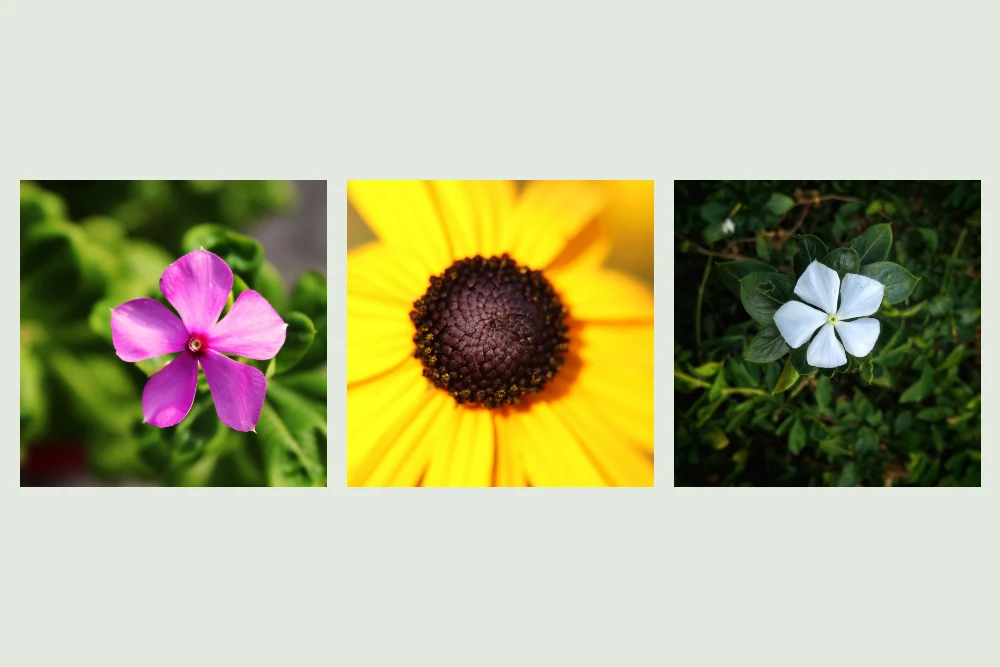
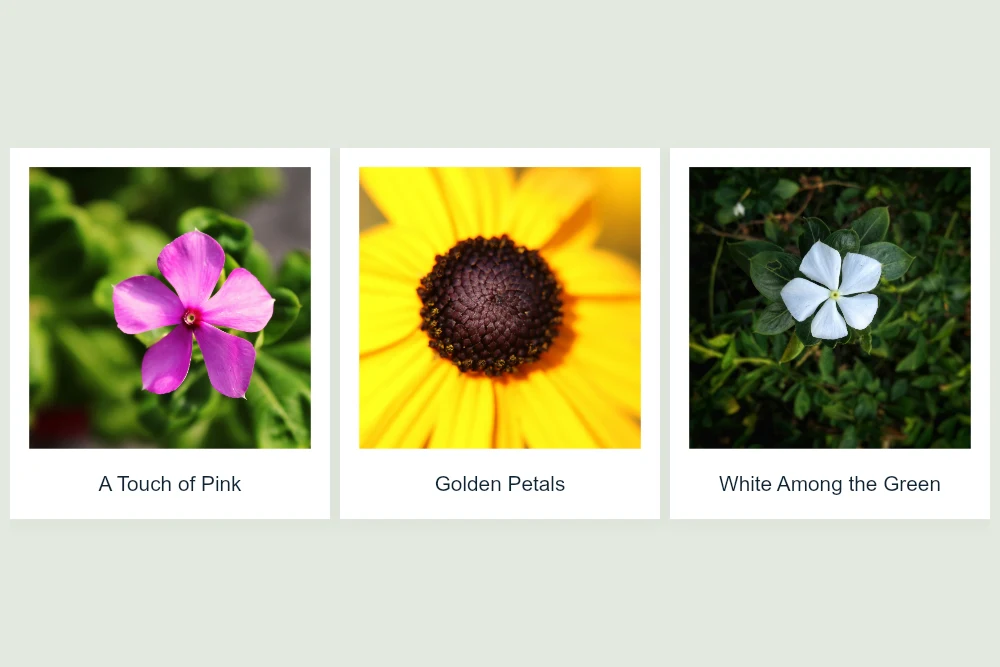
Settings used: Three photographs arranged in a neat grid on a landscape canvas, with white frames and captions.
Examples use resized images. Fine detail can vary with your source resolution.
All tool guides · Open Polaroid Collage
Make this edit
- Add your photographs and choose a landscape, portrait, or square canvas.
- Start with Neat grid for an orderly layout, or try Scattered or Randomize. Drag photos to move them.
- Select a thumbnail to edit its caption, shape, size, rotation, or crop. Choose a background color and download as JPG or PNG.
Available options, explained
- Canvas shape
- Landscape 3:2, Portrait 2:3, Square 1:1, Widescreen 16:9, Story 9:16, Portrait post 4:5, Classic landscape 4:3, Classic portrait 3:4, and Panorama 2:1. Choose for the final display or print shape.
- Layout and background
- Neat grid aligns frames; Scattered adds a relaxed arrangement; Random and Randomize vary the layout. Set a background color, which is included in the export.
- Frames and captions
- Show or hide frames and captions. Set the frame color, caption color, and caption font for a coordinated series.
- Selected photo
- Choose a thumbnail to edit its caption, shape (Square, Portrait, or Landscape), size, rotation, zoom, and crop. Drag it on the canvas to move it.
- Layer order and removal
- Bring to front or Send to back changes overlaps. Remove photo deletes it from this collage without changing your original file.
- Downloads
- Choose PNG for lossless output or JPG for a smaller photograph-based file. Use up to ten photos, and review the final layout before downloading.
Get a better result
Use a consistent caption style and leave some background visible. Filling every gap can make the arrangement harder to scan, especially on a phone.
Troubleshooting
If a subject is clipped, adjust that photo’s crop rather than moving the entire canvas. Small source images can look soft when enlarged. The chosen background color is included in the collage export.